
Drag and Drop Sortable List using jQuery
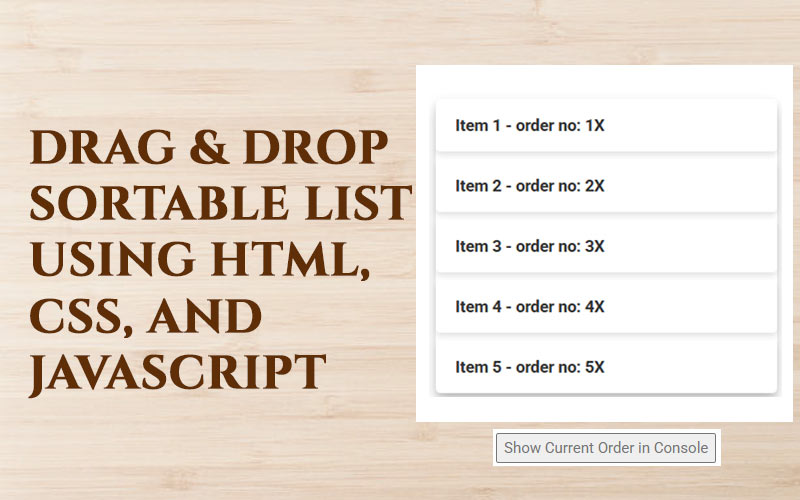
Managing list order manually can be time-consuming, especially when dealing with menus, categories, or dynamic items. With jQuery UI’s Sortable feature, creating an interactive drag-and-drop sortable list becomes extremely simple and user-friendly.
In this tutorial, we will learn how to build a sortable list where users can easily drag items to rearrange their order. This feature is widely used in admin panels, task management apps, dashboards, and anywhere list ordering is required.
You will also get a ready-to-use jQuery snippet that works with any HTML list. No complex setup — just include jQuery UI and add a few lines of code!
<html>
<head>
<script src="https://ajax.googleapis.com/ajax/libs/jquery/3.7.1/jquery.min.js"></script>
    <style>
        body {
            font-family: 'Poppins', sans-serif;
            padding: 20px;
            background: linear-gradient(to right, #6a11cb, #2575fc);
            color: #fff;
            text-align: center;
        }
        h2 {
            margin-bottom: 20px;
            font-size: 1.8em;
        }
        .sortable-list {
            list-style: none;
            padding: 0;
            width: 350px;
            margin: auto;
            background: rgba(255, 255, 255, 0.1);
            border-radius: 10px;
            box-shadow: 0 8px 15px rgba(0, 0, 0, 0.2);
        }
        .sortable-item {
            padding: 15px 20px;
            margin: 8px 0;
            background: rgba(255, 255, 255, 0.8);
            border-radius: 5px;
            font-size: 1.1em;
            color: #333;
            font-weight: bold;
            cursor: grab;
            box-shadow: 0 4px 6px rgba(0, 0, 0, 0.1);
            transition: background 0.2s, transform 0.2s;
        }
        .sortable-item:hover {
            background: #e8f0ff;
            transform: scale(1.03);
        }
        .dragging {
            opacity: 0.7;
            transform: rotate(-2deg);
        }
        .over {
            border: 2px dashed #ff8c42;
            background: #fff3e0;
        }
    </style>
</head>
<body>
<div id="inactive">
</div>
<hr>
 <h2>Drag and Drop Sortable List</h2>
  <ul class="sortable-list">
    <li class="sortable-item" draggable="true">Item 1 - order no: 1<span>X</span></li>
    <li class="sortable-item" draggable="true">Item 2 - order no: 2<span>X</span></li>
    <li class="sortable-item" draggable="true">Item 3 - order no: 3<span>X</span></li>
    <li class="sortable-item" draggable="true">Item 4 - order no: 4<span>X</span></li>
    <li class="sortable-item" draggable="true">Item 5 - order no: 5<span>X</span></li>
</ul>
<button onclick="showOrder()">Show Current Order in Console</button>
<script>
$('.sortable-item span').click(function(){
var curhtml = $(this).closest('li').prop('outerHTML');
$('#inactive').append(curhtml)
$(this).closest('li').remove()
//alert(curhtml)
});
    const list = document.querySelector('.sortable-list');
    let draggingItem = null;
    list.addEventListener('dragstart', (e) => {
        draggingItem = e.target;
        e.target.classList.add('dragging');
    });
    list.addEventListener('dragend', (e) => {
        e.target.classList.remove('dragging');
        document.querySelectorAll('.sortable-item')
            .forEach(item => item.classList.remove('over'));
        draggingItem = null;
        // Update the order numbers after drag ends
        updateOrderNumbers();
    });
    list.addEventListener('dragover', (e) => {
       e.preventDefault();
        const draggingOverItem = getDragAfterElement(list, e.clientY);
        document.querySelectorAll('.sortable-item').forEach
            (item => item.classList.remove('over'));
        if (draggingOverItem) {
            draggingOverItem.classList.add('over');
            list.insertBefore(draggingItem, draggingOverItem);
        } else {
            list.appendChild(draggingItem);
        }
    });
    function getDragAfterElement(container, y) {
        const draggableElements = [...container.querySelectorAll('.sortable-item:not(.dragging)')];
        return draggableElements.reduce((closest, child) => {
            const box = child.getBoundingClientRect();
            const offset = y - box.top - box.height / 2;
            if (offset < 0 && offset > closest.offset) {
                return { offset: offset, element: child };
            } else {
                return closest;
            }
        }, { offset: Number.NEGATIVE_INFINITY }).element;
    }
    function updateOrderNumbers() {
        const items = document.querySelectorAll('.sortable-item');
        items.forEach((item, index) => {
            const baseText = item.textContent.split('-')[0].trim();
            //item.textContent = `${baseText} - order no: ${index + 1}`;
        });
    }
    function showOrder() {
        const items = document.querySelectorAll('.sortable-item');
        const order = [];
        items.forEach((item, index) => {
            order.push(`${item.textContent.trim()}`);
        });
        console.log("Current Order:");
        console.log(order);
    }
</script>
</body>
</html>
This post covers:
- Creating a list that users can reorder
- Enabling drag-and-drop sorting using jQuery UI Sortable
- Saving the updated order (optional)
- Clean and responsive UI behavior
Perfect for beginners and developers looking to enhance UX with minimal code.
Hi, this is a comment.
To get started with moderating, editing, and deleting comments, please visit the Comments screen in the dashboard.
Commenter avatars come from Gravatar.